User Guide → Step by Step User Manual
1. Login through the ISP Portal
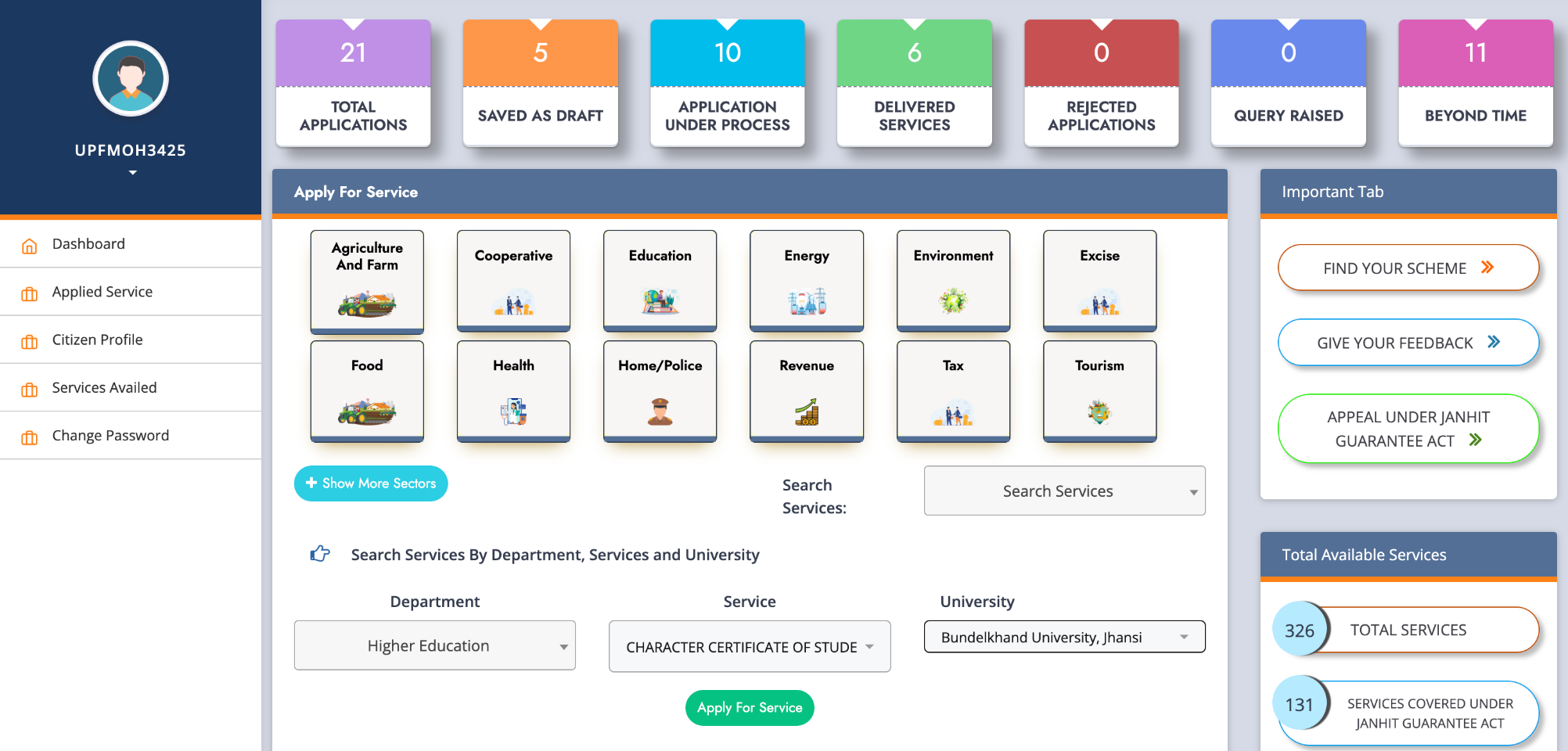
-> Log in using the citizen login, select the department, service, and university, then click to apply for the service.
2. Complete your profile (if not completed) (for first-time users only)
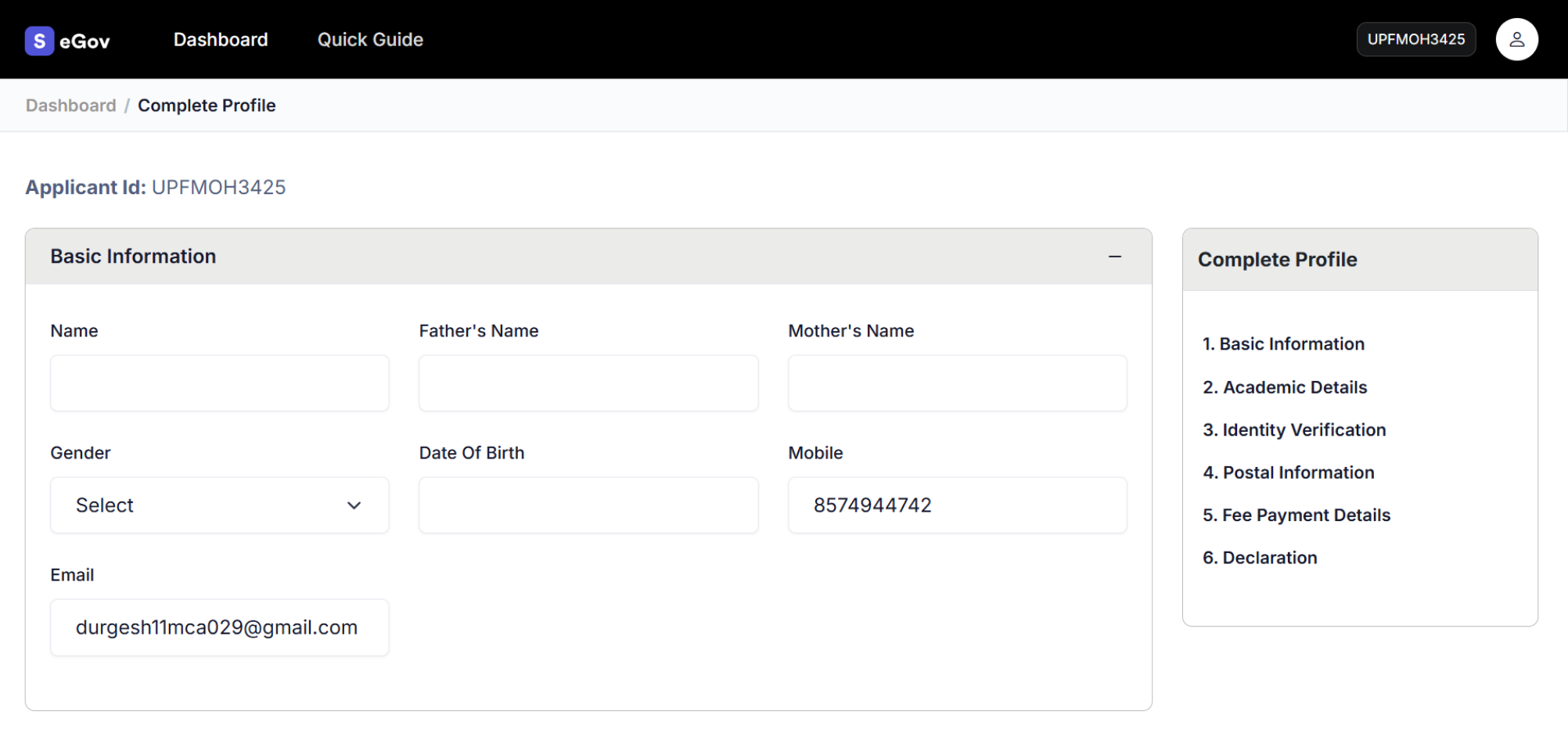
-> You will now be redirected to the Samarth Service Request Manager portal. If your profile is not completed, you will be prompted to complete it.
3. Select the program and service to apply for
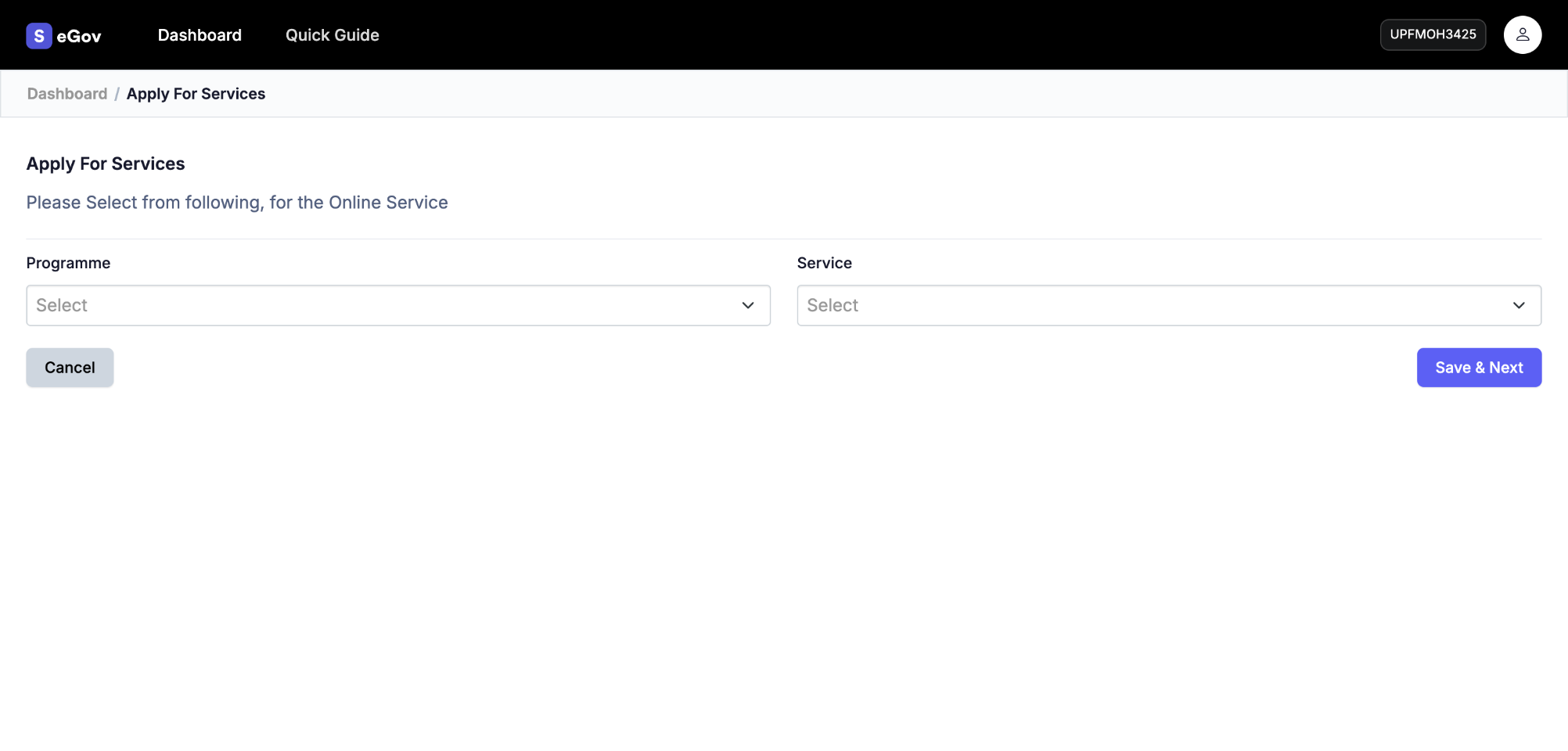
-> If your profile is complete, you will be redirected to the Apply for Services section. Choose the desired service to submit your service requests.
4. Enter all the required details for each service type
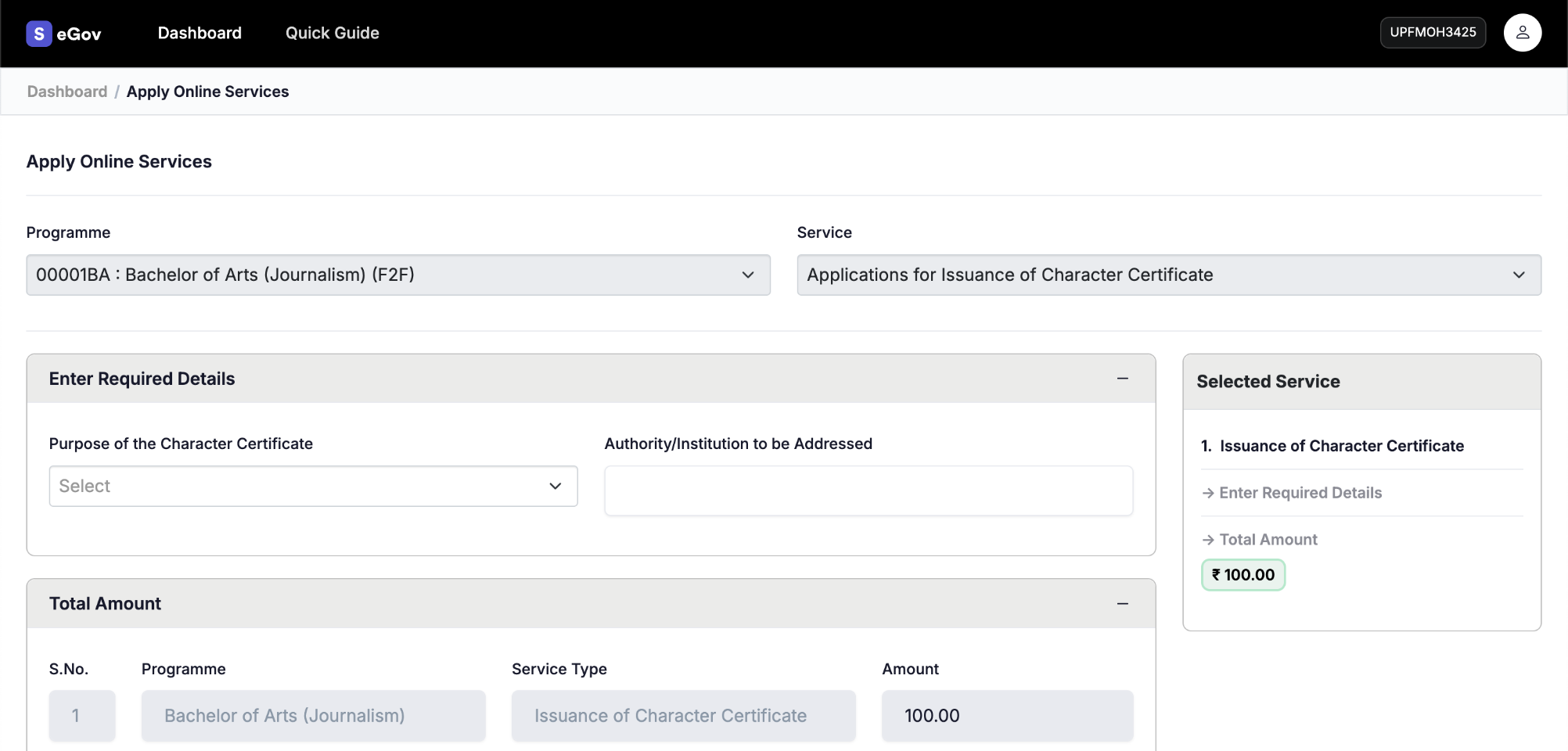
-> For each selected service type, enter all required details, complete the uploads or payments if applicable, and then submit.
5. Your personal dashboard to track all your service requests
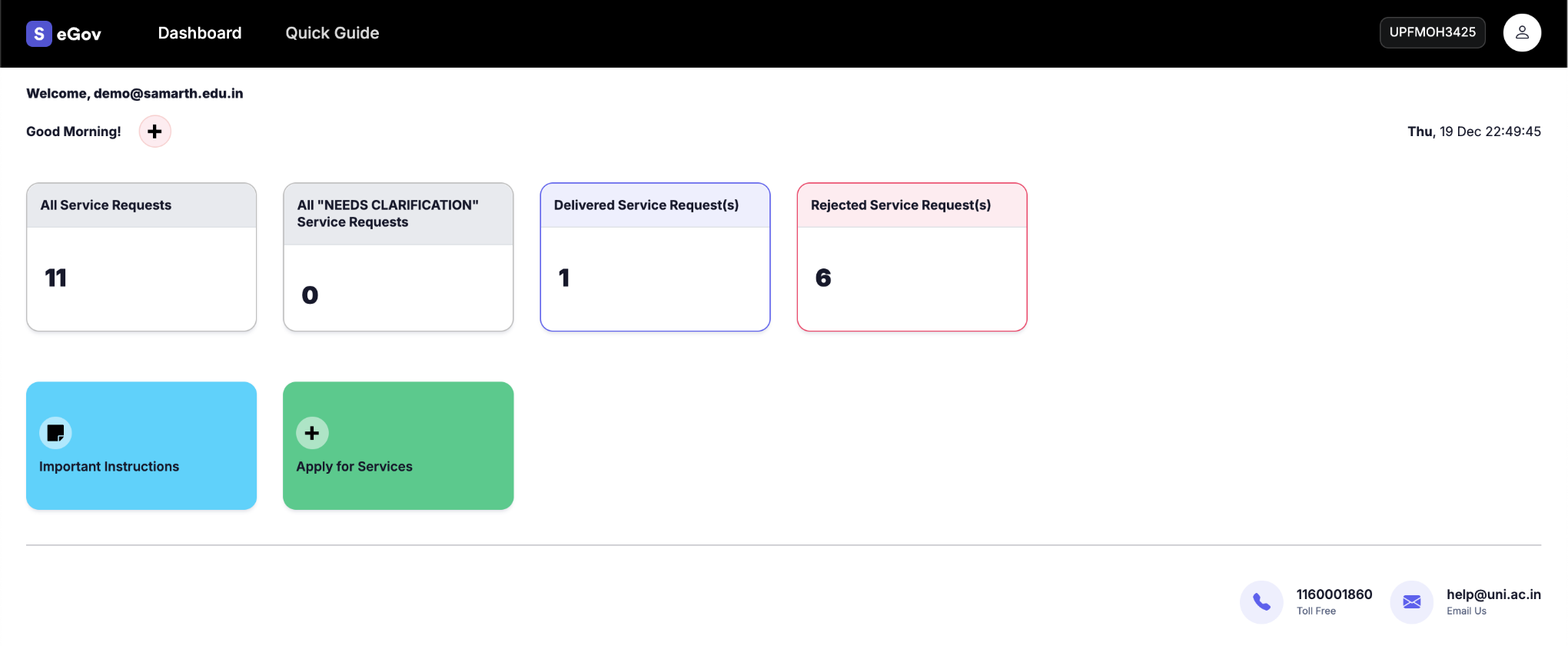
-> View all your service requests at a glance on the home screen after logging in.
6. Test

-> Test